Core Features
Mobile App
Start agents, answer them, and review their changes from your iPhone or iPad
Superset for iPhone and iPad opens the same workspaces you use on your computer. Your agents keep running on that computer. From your phone, you can start new agents, answer the ones that need you, and review what they changed.
Download Superset for iPhone and iPad. You need iOS 26 or iPadOS 26 or later and Superset Pro. Android is not available yet; join the Android waitlist.
Connect Your Computer
- On your computer, turn on Remote Access in Settings → Remote Access.
- On your iPhone or iPad, sign in with the same Superset account and select the same organization.
- Keep the computer awake, online, and running Superset.
For details, see Connect from an iPhone or iPad.
Home
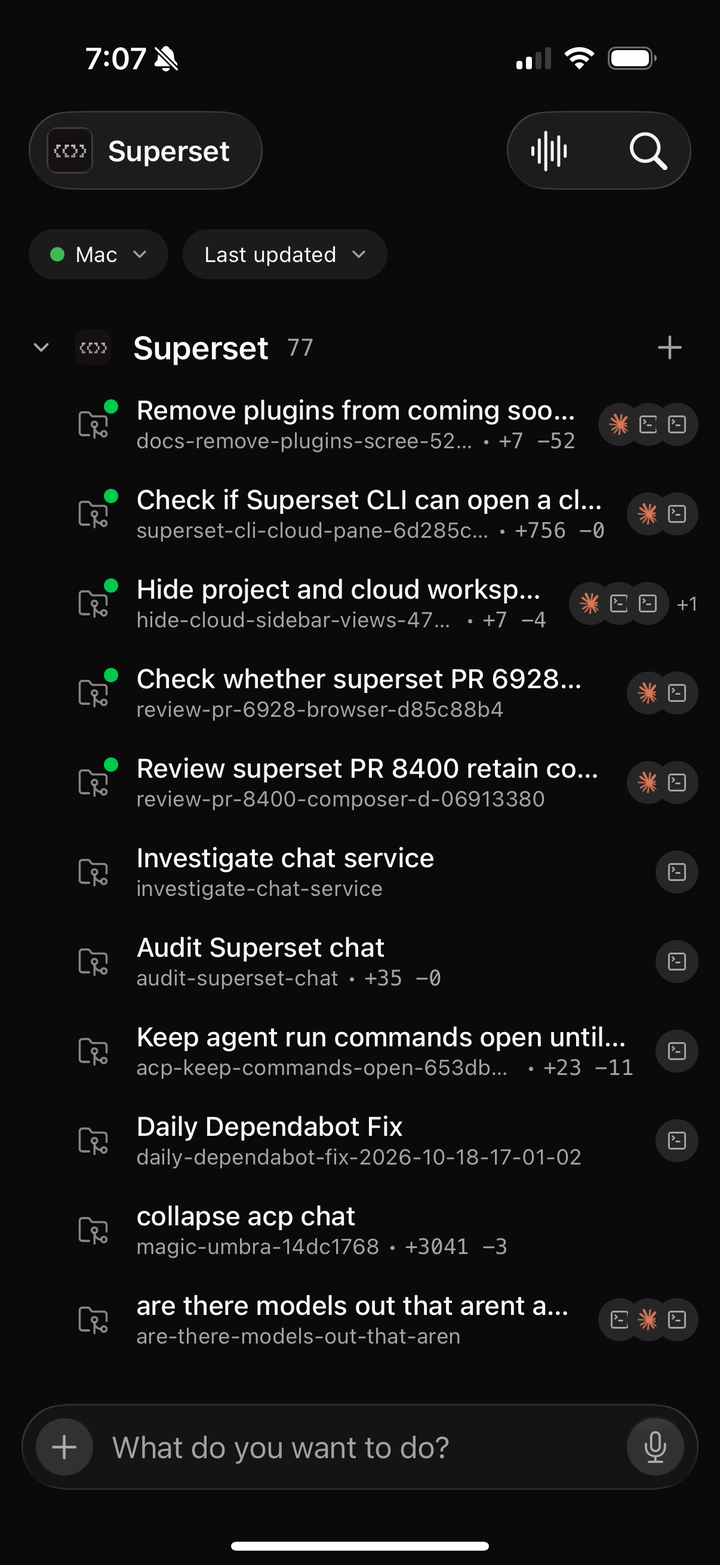
Home lists the workspaces on one machine, grouped by project.
- Machine: tap the machine name to switch to another computer. The dot beside the name shows whether that machine is online.
- Sort: sort by Last updated or Date created.
- Search: tap the search button to find a workspace by name.
Each row shows the workspace name, its branch, the lines added and removed, and the agents and terminals open in it. A dot on the row's icon tells you what needs attention:
| Dot | Meaning |
|---|---|
| Yellow | An agent needs your permission. |
| Red | An agent run failed. |
| Green | An agent finished, and its work is ready to review. |
Touch and hold a workspace to Pin, Rename, Share, Archive, Mark as Read, Copy ID, or Delete it.
Start an Agent
Type a prompt in What do you want to do? at the bottom of Home. Before you send it, you can choose the project, the base branch, the agent, and the model or effort, and attach files or photos. Sending the prompt creates a workspace on the selected machine and starts the agent in it.
To start a workspace in a specific project, tap + beside the project name.
Work in a Workspace
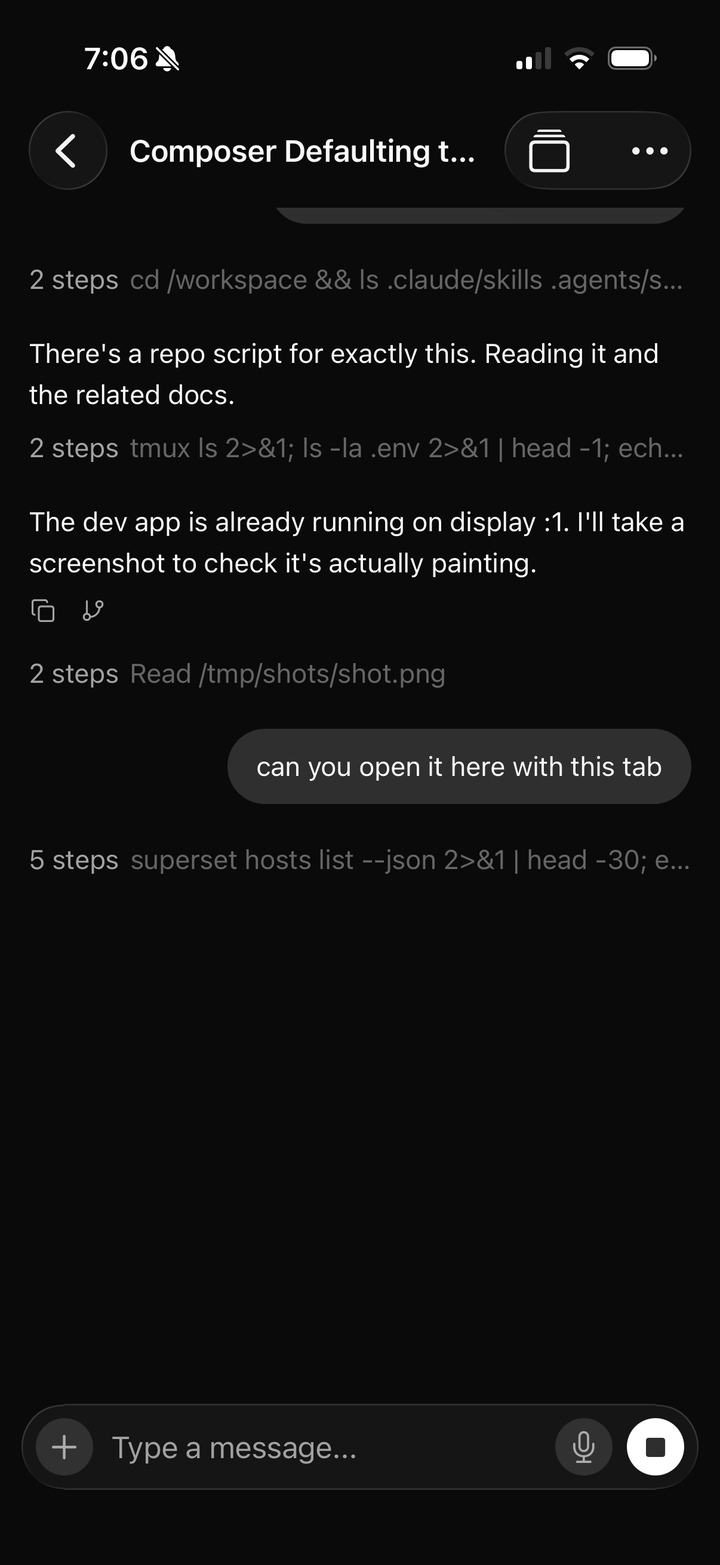
Open a workspace to follow its sessions live. To answer an agent or send the next prompt, type it, dictate it, or attach a photo. Use the session tabs in the composer to switch sessions or start another one in the same workspace.
Review Changes
- Open the changed files to read syntax-highlighted diffs, one file at a time.
- Touch and hold a line to add a comment.
- Tap Finish review, write a summary if you want one, and choose where to send it: an open agent session, or New agent session.
- Tap Send review. The agent gets your comments and the summary.
Pull Requests
When a workspace has a pull request, its icon on Home shows the pull request state. Open the pull request to see its checks, reviews, and comments. You can:
- Merge it with Squash & Merge, Create Merge Commit, or Rebase & Merge.
- Hand the next step to an agent in the workspace: Fix Checks with Agent when checks fail or the branch has conflicts, or Address Comments with Agent when reviewers left comments.
Pages
Open Pages from the app to read pages your team publishes. Tap anything on a page to comment on it, reply to threads, and resolve them.
Settings
In Settings, you can:
- See which of your machines are online under Hosts.
- Switch organization.
- Manage your plan on the web.
- Get help, contact support, or sign out.
Troubleshooting
If your computer shows as offline in the app, see Why does my Mac show as offline in the mobile app after I quit Superset? and Remote Host Won’t Connect.