Core Features
Cloud WorkspacesPro
Set up cloud workspaces, environments, and machine sizes
Early access
Cloud workspaces are in early access. They are not yet available to every account, so you might not see the Cloud option in the app yet.
Overview
A cloud workspace runs in a sandbox in the cloud instead of on your computer. Agents keep working when your laptop is closed, and you can open the workspace from desktop, iPhone, or iPad.
Every cloud workspace starts from an environment: the repositories to clone, the variables to set, and the region to run in. You set up an environment once per repository, then start as many workspaces from it as you need.
Requirements
- A paid plan. Cloud workspaces need a paid Superset plan. Usage counts against your organization's cloud usage limit (see Usage and billing).
- GitHub. Connect GitHub in Integrations and give the Superset GitHub App access to each repository you want to use. A cloud workspace clones its repositories through the app.
- Agent sign-in. Sign in to your agents under Settings → Agents. Cloud workspaces use that sign-in; see Credentials.
Set Up
1. Create an environment
Open Settings → Environments and click New environment. You can also pick a cloud project in the new-workspace screen, open the environment picker (it reads Set up environment), and choose New environment.
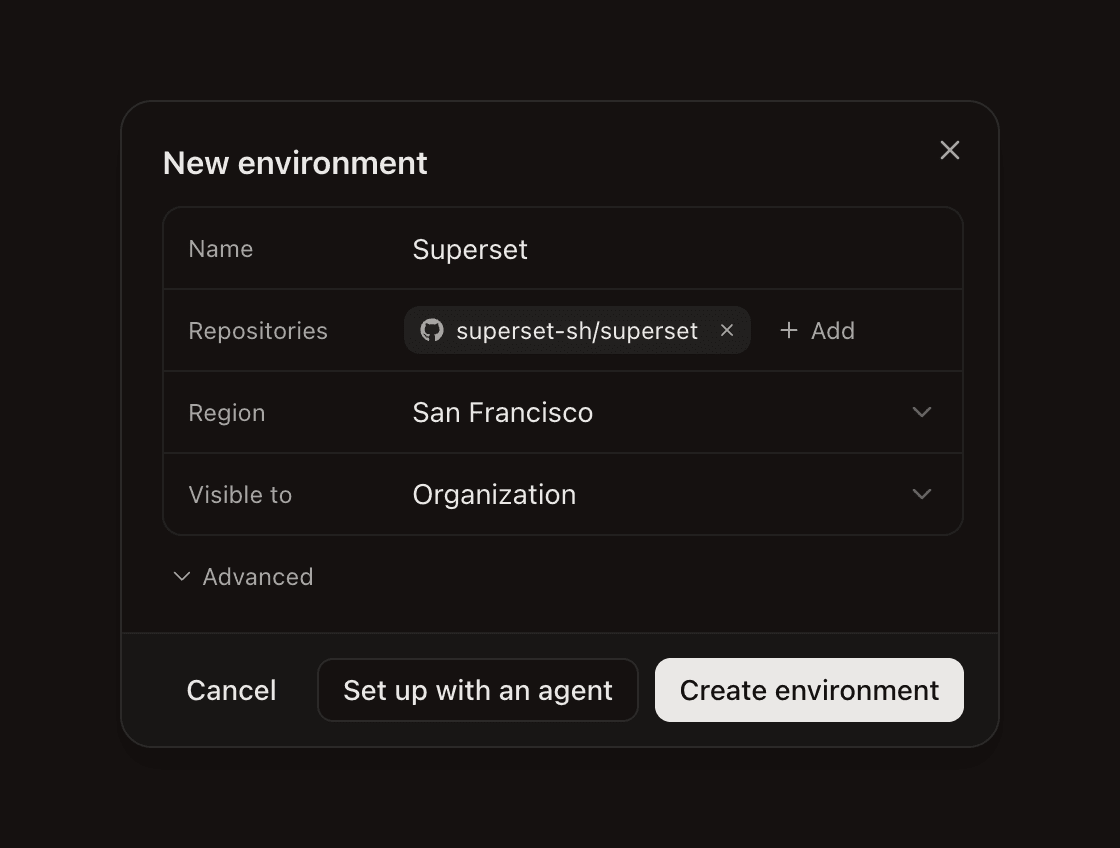
- Name: how the environment appears in pickers.
- Repositories: one to 20 GitHub repositories. The first one is the primary.
- Advanced → Opens on: the primary repository, whose
.superset/config.jsonsets the workspace's setup scripts and ports. Shown when there is more than one repository. - Advanced → Region: where the sandboxes run. The default is the region nearest to you. You can set it only when you create the environment.
- Advanced → Visible to: Organization (default) or Only you.
Click Create environment. From Settings → Environments you can instead click Set up with an agent: it starts a cloud workspace where Claude installs what the project needs and writes its .superset/config.json.
2. Add variables
Click the environment in Settings → Environments to add variables and secrets. Every sandbox started from the environment gets them.
Cloud workspaces ignore ANTHROPIC_API_KEY, ANTHROPIC_AUTH_TOKEN, CLAUDE_CODE_OAUTH_TOKEN, OPENAI_API_KEY, GH_TOKEN, and GITHUB_TOKEN. Agents use your sign-in from Settings → Agents, and GitHub access comes from your connected GitHub account (see Credentials).
3. Start a workspace
- Press ⌘N and pick Cloud in the device picker.
- Pick a project. Only projects linked to a GitHub repository appear.
- Pick the base branch, the environment, and the machine size. Superset creates a new working branch from the base branch.
- Write your prompt and start.
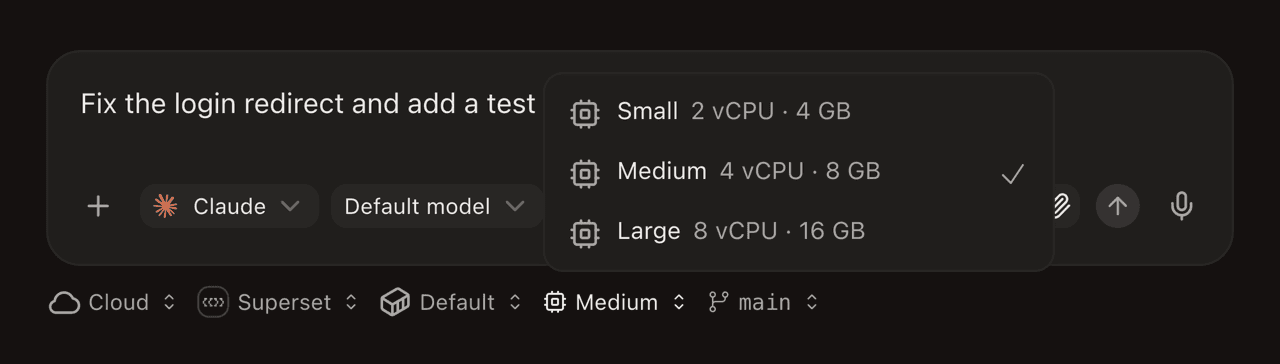
If no environment includes the project's repository, the environment picker reads Set up environment. Choose New environment to open the editor with that repository already selected.
4. Save a set-up workspace as an environment
A new environment starts from a clean base image, so each workspace runs its setup from the start. To skip that, set up one workspace fully (install dependencies, build, sign in to tools), then right-click it in the sidebar and choose Save as environment.
This saves a snapshot of the workspace as it is now. New workspaces from that environment start from the snapshot. The workspace must be ready (fully started) first. A saved environment's repositories and region are fixed; to change them, save a workspace again.
Machine Sizes
Each cloud workspace runs on a machine size you pick when you create it. Every size has 2 GB of memory per vCPU and a 64 GB disk.
| Size | Name in CLI | vCPU | Memory | Available on |
|---|---|---|---|---|
| Small | small | 2 | 4 GB | All paid plans |
| Medium | medium | 4 | 8 GB | All paid plans (default) |
| Large | large | 8 | 16 GB | All paid plans |
| X-Large | xlarge | 16 | 32 GB | On request |
| 2X-Large | 2xlarge | 32 | 64 GB | On request |
- Medium is the default.
- Usage scales with memory. An hour on Large counts twice as much as an hour on Medium.
- You can't resize a workspace. Start a new one instead.
- X-Large and 2X-Large are off by default. To turn them on, email [email protected].
- If your organization loses access to a size, its workspaces wake on the default size.
Choosing a size
Pick by what the workspace runs, not by repository size. Memory runs out first.
| Size | Good for |
|---|---|
| Small | Editing code and quick checks: scripts, CLIs, libraries, code review, issue triage. No dev servers or browsers. |
| Medium | Most web apps and monorepos, with one dev stack. Superset's own dev stack (API, web, realtime, Electron) uses about 6 GB. |
| Large | Full typechecks of large TypeScript monorepos, native compiles (Rust, C++, Go, Java, Android), browser tests (Playwright, Cypress), or two or more dev stacks. |
| X-Large, 2X-Large | The largest native builds and test suites. |
Rule of thumb: if it runs well on an 8 GB laptop, use Medium; if it needs 16 GB, use Large.
Too small: commands stop with Killed (exit code 137), or builds are slow. Start a new workspace one size up.
Too large: free -h shows most memory unused and top shows idle CPUs. Size down to save usage, mainly on automations that run often.
The new-workspace screen shows each size with its vCPU and memory. From the CLI, pass --machine-size:
superset workspaces create --machine-size large \
  --agent claude --prompt "Fix the login redirect"
If your account has cloud workspaces, workspaces create makes a cloud workspace by default; pass --local to create one on this machine instead. --branch sets the base branch (default: the repository's default branch), and Superset creates a new working branch from it.
If more than one environment has repositories, also pass --environment <id>. Run the command without it to see each environment's ID and name.
Automations that target Cloud have a machine size picker too. Each run starts a new cloud workspace at that size, unless the automation reuses an existing cloud workspace. From the CLI, superset automations create --machine-size <size> implies a cloud target.
Usage and Billing
Cloud usage is metered in GB-hours: the machine's memory multiplied by the time it runs. A stopped or sleeping workspace uses no GB-hours.
Settings → Billing shows the GB-hours used this period, when it resets, and any usage over the plan. Superset checks the limit each time a workspace starts or wakes, and while it runs. A running workspace that reaches the limit stops about 10 minutes later.
- Without a paid plan: "Cloud workspaces need a paid plan."
- At the limit: "Your organization has reached its cloud usage limit." Raise the limit or upgrade in Settings → Billing.
Each plan limits how many environments an organization can hold. When you reach the limit, archive one or upgrade in Settings → Billing.
Lifecycle
- Idle stop. A workspace stops after about an hour with no one viewing it and no agent working. Its files are kept for 30 days, and opening it again resumes it.
- Sleep.
superset workspaces sleep <id>stops a workspace now. An agent can run it as its last step. Opening the workspace wakes it. - Archive. An archived workspace stops about a minute later. You can unarchive it within 7 days and keep its disk. After that, the sandbox is deleted.
Credentials
No API key or token is copied into the sandbox. Agents and gh see a placeholder, and Superset adds the real credential to outgoing requests: your agent sign-in, and your GitHub token if you connected GitHub (otherwise the Superset GitHub App's token).
Files
The checkout lives at /workspace. An environment with more than one repository puts each one at /workspace/<name>, or /workspace/<owner>-<name> when two names are the same.
Troubleshooting
- No Cloud option, or "Cloud sandboxes are not enabled" from the CLI: your account does not have early access yet.
- The project is missing from the Cloud picker: link the project to a GitHub repository, and make sure the Superset GitHub App can access it.
- The environment editor says a repository "isn't shared with the Superset GitHub App yet": click Configure GitHub App and add the repository.
- "Your GitHub account cannot reach…": your connected GitHub account has no access to a repository in the environment. Ask for access, or pick another environment.
- "This machine size is not available for your organization": pick Small, Medium, or Large, or email [email protected] to turn on the larger sizes.